
%20—%20배경:%20앱%20색(청회색),%20흰%20고리·손잡이%20+%20아래%20흰%20막대(독).%2016px%20에서도%20읽히게%20굵은%20획만%20쓴다%20--%3e%3crect%20x='8'%20y='8'%20width='240'%20height='240'%20rx='56'%20fill='%23475569'/%3e%3ccircle%20cx='112'%20cy='104'%20r='48'%20fill='none'%20stroke='%23ffffff'%20stroke-width='26'/%3e%3cline%20x1='148'%20y1='140'%20x2='190'%20y2='182'%20stroke='%23ffffff'%20stroke-width='28'%20stroke-linecap='round'/%3e%3crect%20x='56'%20y='200'%20width='144'%20height='20'%20rx='10'%20fill='%23ffffff'%20fill-opacity='0.85'/%3e%3c/svg%3e) PortDock Port Inspector
PortDock Port Inspector
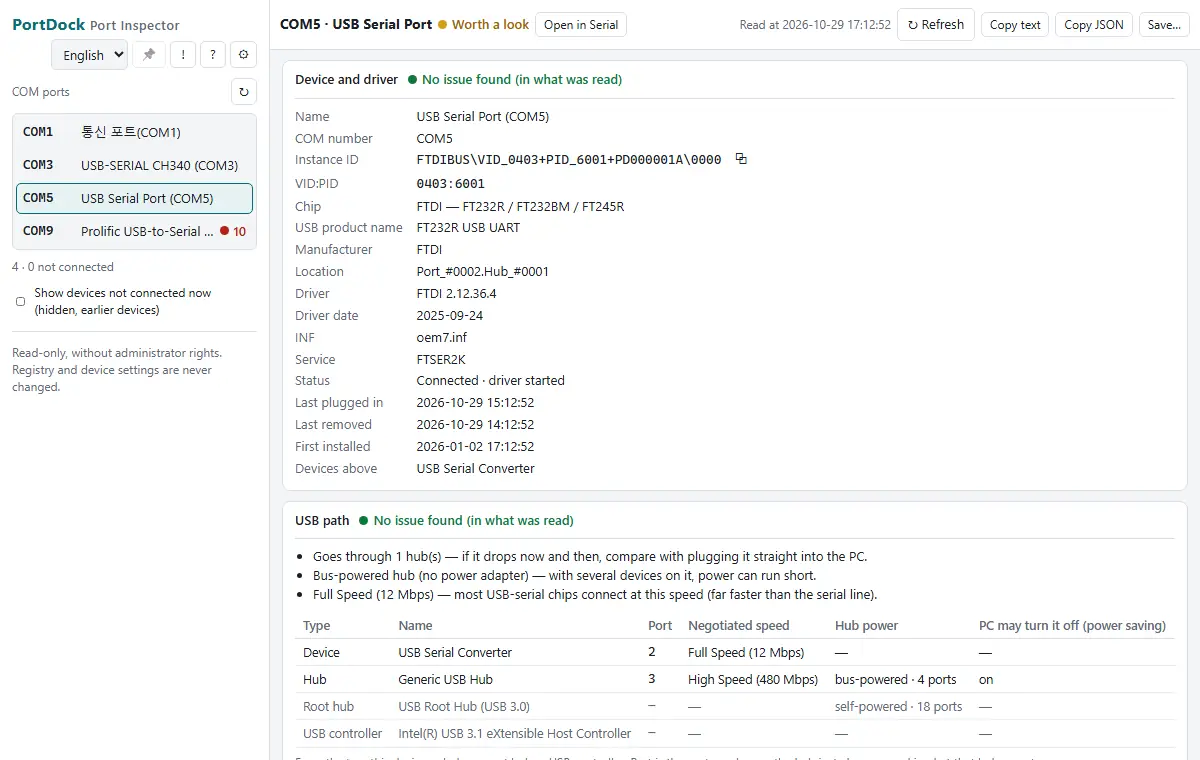
Pick a COM port and see in one place what you would otherwise dig out of Device Manager, Event Viewer and the registry: the driver, problem code and its meaning, USB chip, device settings such as the FTDI latency timer, USB power saving, recent plug history and COM number reservations. It only reads, without admin rights, and with TX tied to RX it measures the round trip at each baud rate. Other tabs read this PC's network adapters, its Windows settings as an equipment PC, and Wi-Fi and Bluetooth the same way.
Free · Windows 10 and 11 · no ads in the program · open source (GPL-3.0)
Made for
- Field engineers whose USB-serial adapter is not detected or drops now and then
- Anyone looking for why Modbus RTU replies seem late (FTDI latency timer)
- Anyone who needs to attach PC-side port details to a support request or issue
Features
Device, driver, problem code
Name, COM number, location, instance ID and manufacturer; driver provider, version, date, INF and service; status and the Device Manager problem code with its meaning and what to try; last plug-in and removal.
USB chip and device settings
Chip name from a VID/PID table (FTDI, Prolific PL2303, WCH CH34x, Silicon Labs CP210x …), the Windows port default and the driver's Device Parameters, with the FTDI latency timer (LatencyTimer) explained.
Power saving and history
USB selective suspend from the power options, «Allow the computer to turn off this device» for the device and the USB devices above it, and plug and driver events from the event logs (7, 30 or 90 days).
COM number reservations
Numbers Windows keeps reserved (ComDB), numbers held by devices not connected now, orphan numbers and numbers held by more than one device — why a new adapter ends up on COM15.
Connection test
A TX–RX loopback per baud rate: bytes same, lost and changed, 1-byte round trip in ms (median and max) and driver error flags (ClearCommError). It also tells whether a 2-wire RS-485 adapter echoes.
Network adapters on this PC
«Read adapters» shows, for each adapter, link, speed, duplex, IPv4 and gateway plus Device Manager «Advanced» values (jumbo frames, receive buffers, interrupt moderation, EEE …), power saving, receive errors, network profile and whether its firewall is on. The «GigE camera» purpose shows camera makers' published values with sources alongside.
This PC — equipment PC settings
«Read this PC's settings» reads fast startup, sleep, USB selective suspend, update restart policy, screen saver, time sync and recent unexpected shutdowns and hardware errors. With the «Equipment PC» purpose, values that can lead to stops or restarts are marked «Worth a look».
Wireless — Wi-Fi and Bluetooth
The «Wireless» tab reads the Wi-Fi adapter, driver, power saving and the disconnect records Windows keeps (counted by reason), plus the Bluetooth adapter, service state, error events and whether Bluetooth audio is in hands-free (call) mode — without admin or location permission. It sends no pings, and exports mask device names.
Read-only, plain results
It never changes settings or drivers (the help explains manual fixes). Each card is marked «No issue found (in what was read) / Worth a look / Problem / Could not read»; what the PC cannot see — A/B swap, termination, bias, ground — is always listed; text and JSON exports mask user folder paths.
In every app — the «AI» button in the title bar (0.8.0, copy for asking AI): builds text for an AI chat from the program, connection settings, errors in this session and recent traffic (or check results), shows a preview and puts it on the clipboard only. PortDock sends nothing; once pasted, it goes to that AI service. User folders, PC names, the last half of MAC addresses and public IPs are masked. Privacy policy →
Quick start
- Click a port in the «COM ports» list on the left
- Read each card's result and reason; if needed, change things yourself in Windows as the help explains
- Tie TX to RX for the «Connection test»; use «Copy text» to attach the result to a question