
When an RS-232 device does not answer, the most common cause is that transmit and receive are not crossed — or crossed twice. PC COM ports and USB-RS232 adapters use a fixed 9-pin (DB9) pinout, so putting it next to the device manual's pin table tells you which cable you need.
PC (DTE) DB9 pinout
| DB9 pin | Signal | At the PC | DB25 pin |
|---|---|---|---|
| 1 | DCD (Carrier Detect) | in | 8 |
| 2 | RxD (Receive Data) | in | 3 |
| 3 | TxD (Transmit Data) | out | 2 |
| 4 | DTR (Data Terminal Ready) | out | 20 |
| 5 | SG (Signal Ground) | — | 7 |
| 6 | DSR (Data Set Ready) | in | 6 |
| 7 | RTS (Request To Send) | out | 4 |
| 8 | CTS (Clear To Send) | in | 5 |
| 9 | RI (Ring Indicator) | in | 22 |
The table follows the Linux Documentation Project's Serial-HOWTO. Pins 2 and 3 have opposite meanings on 9-pin and 25-pin connectors (TxD is pin 3 on DB9 and pin 2 on DB25), and ground is pin 5 on DB9 and pin 7 on DB25 — which is why a DB9-to-DB25 adapter connects signal to signal, not pin 1 to pin 1.
Straight-through vs null modem
- Terminal equipment such as a PC is DTE; a modem is DCE. DTE ↔ DCE uses a straight-through cable, because a DCE receives on pin 3 and transmits on pin 2.
- DTE ↔ DTE (PC to PC, or PC to a device wired like a PC) needs a null-modem (crossover) cable that crosses transmit and receive.
- To tell which side a device is, check whether pin 2 is «TxD» or «RxD» in its manual. If the device transmits on pin 3 it is wired like a PC (DTE) and needs a crossover; if it transmits on pin 2, use straight-through.
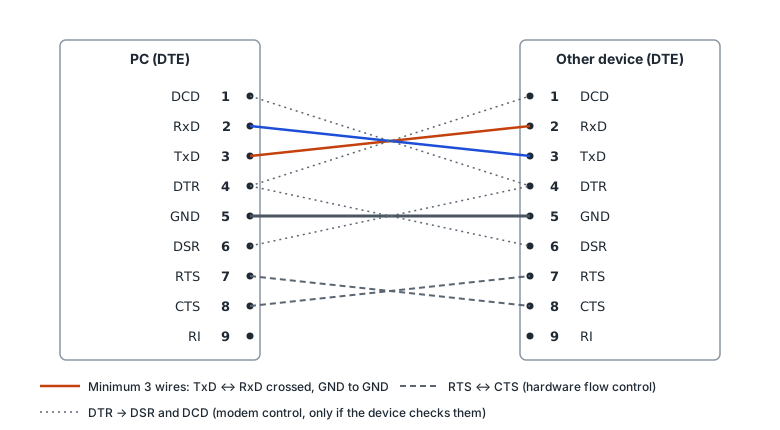
Null-modem wiring (DB9 ↔ DB9)
| This end | Other end | Purpose | |
|---|---|---|---|
| 3 TxD | → | 2 RxD | data |
| 2 RxD | ← | 3 TxD | data |
| 5 GND | — | 5 GND | signal ground |
| 7 RTS | → | 8 CTS | hardware flow control |
| 8 CTS | ← | 7 RTS | hardware flow control |
| 4 DTR | → | 6 DSR · 1 DCD | modem control |
| 6 DSR · 1 DCD | ← | 4 DTR | modem control |
| 9 RI | not connected |
This is the «standard null modem cable» from the Text-Terminal-HOWTO. Some cables on the market are wired differently, so check the cable's diagram when you use flow control.
Are three wires enough?
If neither side uses flow control (flow control «none» in the terminal program), crossing TxD and RxD and joining GND is enough. If a device only transmits when an input such as CTS or DSR is on and the cable lacks that wire, the same document describes the old trick of looping RTS to CTS and DTR to DSR and DCD inside each connector so each side «permits itself». Follow the device manual's flow control setting to decide.
When nothing arrives
- Loopback: join pins 2 and 3 on the PC-side connector and check that sent bytes come straight back. If they do, the PC port, adapter and driver work.
- Crossing: loop back at the far end of the cable to learn whether it is straight or crossed. A DTE device needs a crossover.
- GND: without pin 5 ground the signals have no reference — garbled characters or nothing at all.
- Settings: baud, data bits, parity and stop bits must match on both sides, and so must flow control. Hardware flow control with no CTS wire blocks transmission.
- Software flow control (XON/XOFF) uses DC1 (0x11) and DC3 (0x13) bytes to pause and resume, so do not use it for binary data.
- Adapters: on terminal-block RS-232 adapters, check whether TxD and RxD are labelled from the adapter's or the other device's point of view.
In PortDock
- Serial: the status bar shows input lamps CTS, DSR, RI and CD and outputs DTR and RTS, so you can see whether the wiring works (does the other side's DTR reach your DSR?). Flow control is «none», «hardware (RTS/CTS)» or «software (XON/XOFF)».
- «ASCII Table & Control Characters» web tool: look up control bytes such as STX, ETX, ACK, NAK, XON and XOFF.
- «UART Baud Rate Error Calculator» web tool: check whether the device MCU's clock gives a large baud error.
Published 2026-10-23