
%20—%20배경:%20앱%20색(벽돌),%20흰%20획%20+%20아래%20흰%20막대(독).%2016px%20에서도%20읽히게%20굵은%20획만%20쓴다%20--%3e%3crect%20x='8'%20y='8'%20width='240'%20height='240'%20rx='56'%20fill='%239a3412'/%3e%3cg%20fill='none'%20stroke='%23ffffff'%20stroke-width='24'%20stroke-linecap='round'%20stroke-linejoin='round'%3e%3crect%20x='80'%20y='52'%20width='96'%20height='124'%20rx='10'/%3e%3cpath%20d='M40%2082%20H62%20M40%20146%20H62%20M194%2082%20H216%20M194%20146%20H216'/%3e%3c/g%3e%3ccircle%20cx='128'%20cy='114'%20r='16'%20fill='%23ffffff'/%3e%3crect%20x='56'%20y='200'%20width='144'%20height='20'%20rx='10'%20fill='%23ffffff'%20fill-opacity='0.85'/%3e%3c/svg%3e) PortDock PLC Simulator
PortDock PLC Simulator
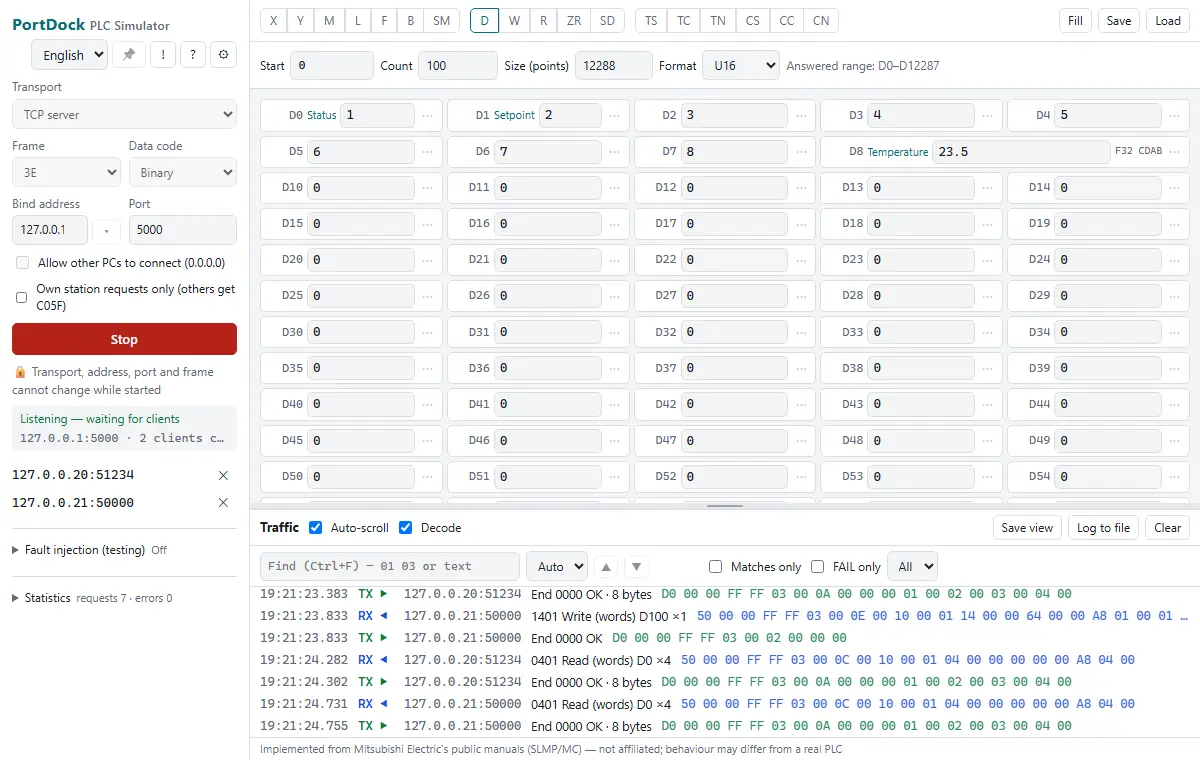
The PC answers MC protocol (SLMP) requests like a PLC's Ethernet port. Put values in the device tables and HMI, data-collection or host software can read and write them; deliberate delays and error end codes test its error handling. It follows the message formats in Mitsubishi Electric's public manuals (SLMP/MC); it is not affiliated, and behaviour may differ from a real PLC.
Free · Windows 10 and 11 · no ads in the program · open source (GPL-3.0)
Made for
- Teams preparing HMI screens and communication before the PLC arrives
- Developers of data-collection or host software that reads PLCs over the MC protocol
Features
3E/4E, binary/ASCII, TCP/UDP
Listens as a TCP server (several clients) or on UDP. 4E replies carry the request's serial number. By default only this PC (127.0.0.1) can connect; allowing other PCs is your choice.
Implemented commands
0401 Read and 1401 Write (words and bits, subcommands 0000–0003), 0403 Read Random, 1402 Write Random and 0619 Loopback. From 0.6.0 also 0406/1406 Read/Write Block, 0801/0802 monitor, 1001–1006 remote RUN/STOP/PAUSE/latch clear/reset (simulated state only) and 0101 Read Type Name (simulated values). Other commands get end code C059.
Condition rules (from 0.6.0)
Mimic handshakes such as «when the request bit turns on, turn the done bit on 300 ms later»: condition (bit ON/OFF/edge, word comparison, periodic) → delay (fixed or random) → actions (bit and word writes). Not a ladder program.
18 devices
X, Y, M, L, F, B, SM, D, W, R, ZR, SD, TS, TC, TN, CS, CC and CN. X, Y, B, W and ZR use hex numbers; each device has a size and requests beyond it get C056. Bit devices can be viewed as 16-point words; cells can be 32-bit, float, string or named.
Fault injection
Response delay (with a range), no response or a chosen end code — targeted by command, device, every Nth request or probability.
Decoded traffic
Each request shows the command name, device and points; each reply the end code and its meaning. Cells changed by a client flash, with statistics.
Simulation and saved states
Values can change by themselves (increment, random, sine, ramp, toggle), and device values and cell settings save to and load from a JSON file.
In every app — the «AI» button in the title bar (0.8.0, copy for asking AI): builds text for an AI chat from the program, connection settings, errors in this session and recent traffic (or check results), shows a preview and puts it on the clipboard only. PortDock sends nothing; once pasted, it goes to that AI service. User folders, PC names, the last half of MAC addresses and public IPs are masked. Privacy policy →
Quick start
- Match the frame (3E/4E), data code (binary/ASCII) and port with the client
- Pick a device (D, M, X …) and enter values
- «Start» — client reads and writes are answered from the tables