
%20—%20배경:%20앱%20색(짙은%20시안),%20흰%20호%20둘%20+%20점%20+%20아래%20흰%20막대(독).%2016px%20에서도%20읽히게%20굵은%20획만%20쓴다%20--%3e%3crect%20x='8'%20y='8'%20width='240'%20height='240'%20rx='56'%20fill='%230e7490'/%3e%3cg%20fill='none'%20stroke='%23ffffff'%20stroke-width='24'%20stroke-linecap='round'%3e%3cpath%20d='M52%20102%20A108%20108%200%200%201%20204%20102'/%3e%3cpath%20d='M86%20136%20A60%2060%200%200%201%20170%20136'/%3e%3c/g%3e%3ccircle%20cx='128'%20cy='168'%20r='17'%20fill='%23ffffff'/%3e%3crect%20x='56'%20y='200'%20width='144'%20height='20'%20rx='10'%20fill='%23ffffff'%20fill-opacity='0.85'/%3e%3c/svg%3e) PortDock Hardware Tester
PortDock Hardware Tester
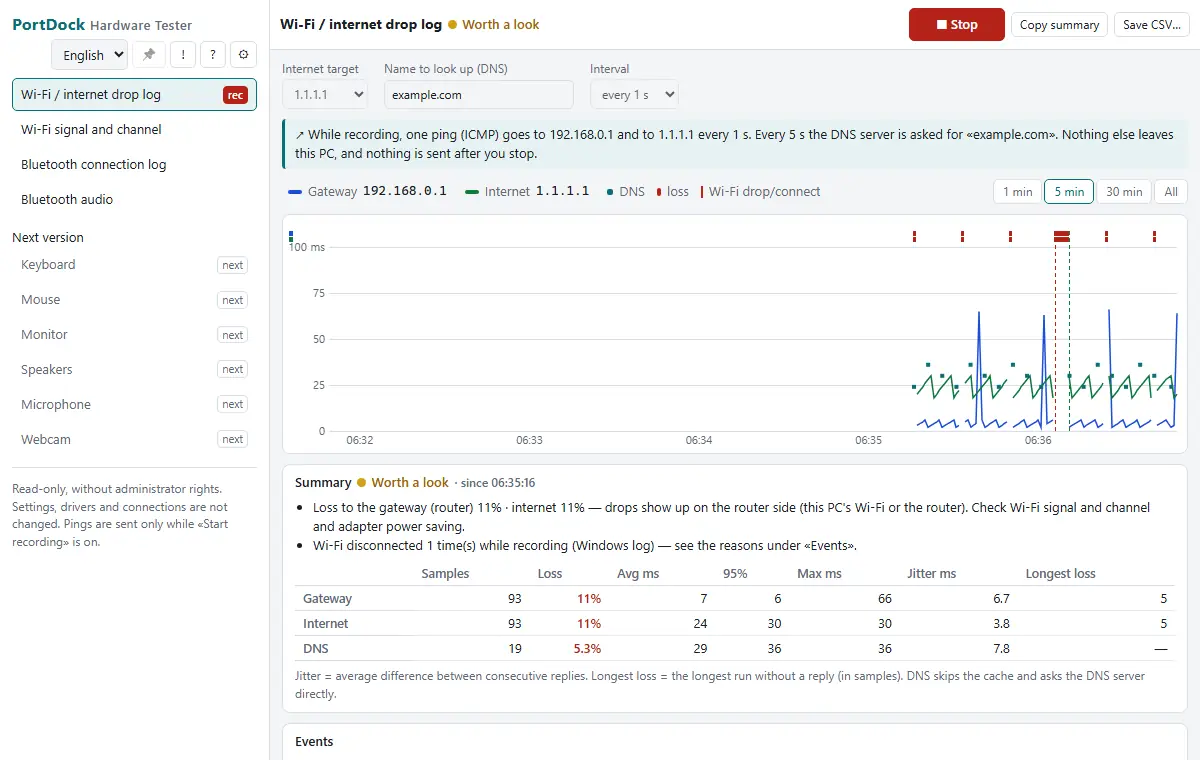
Turns «my Wi-Fi keeps dropping» into a record. While recording it pings your gateway (router) and one internet address side by side, draws latency and loss on one chart with the Wi-Fi disconnect reasons Windows logs on the same timeline, and tells you whether to look on the router side or beyond it. It also logs when Bluetooth devices connect and disconnect. Read-only, without administrator rights; it changes no settings.
Free · Windows 10 and 11 · no ads in the program · open source (GPL-3.0)
Keyboard, mouse, monitor, speaker, microphone, webcam and gamepad tests are not in this program — use the PC hardware tests (web, no install) in your browser.
Made for
- Anyone whose Wi-Fi keeps dropping and who wants to know whether it is the router or the internet
- People who want a record of when Bluetooth earbuds or keyboards disconnect
- Field engineers documenting a device PC's wireless link before a support call
Features
Gateway vs internet
Pings the router and an internet address (1.1.1.1, 8.8.8.8 or your own) on the same beat and shows loss, average, 95th percentile and jitter side by side. Never more than once per second; one recording stops after 24 hours.
Windows' disconnect reasons on the same chart
Reads the WLAN-AutoConfig log (8001 connect, 8003 disconnect) and shows it as lines on the chart and as Windows' reason wording in the event list. The Wi-Fi name is not read.
DNS response time
Every 5 s one name (example.com by default) is looked up at the DNS server without the cache, timing replies and failures.
Where-to-look summary and CSV
Says «router side» when loss reaches the gateway and «beyond the router» when only the internet target loses replies — where to look, not the cause. Records save as CSV.
Bluetooth connection log
Reads paired devices' «Connected» state every 2 s and logs connects and drops. Names are shown only on screen; saved and copied text uses «Device N».
Bluetooth audio mode and left/right tones
Shows whether the default output is stereo (A2DP) or hands-free for calls, and plays left, right and both test tones.
Wi-Fi signal and channel (on request)
Only while «Show signal» is on: signal strength, link speed, band, channel and how many nearby networks share each channel (no names). From Windows 11 24H2 this needs location permission (the rest works without it).
In every app — the «AI» button in the title bar (0.8.0, copy for asking AI): builds text for an AI chat from the program, connection settings, errors in this session and recent traffic (or check results), shows a preview and puts it on the clipboard only. PortDock sends nothing; once pasted, it goes to that AI service. User folders, PC names, the last half of MAC addresses and public IPs are masked. Privacy policy →
Quick start
- Choose the internet target and interval, then «Start recording»
- Leave it until the drops happen — router and internet latency and Windows' reasons on one chart
- Read where to look in «Summary», then «Save CSV…» or «Copy summary»